
Desktop bilingual reader for PDFs and EPUBs
Desktop bilingual reader for PDFs and EPUBs
Read without losing the page.
readani keeps the original document on one side and the translation on the other, so you can keep reading instead of bouncing between tabs.
Latest stable release
v1.4.0 · May 19, 2026
macOS
16.3 MB
Windows
7.7 MB
What it does
readani is a desktop reader for people who need to understand PDFs and EPUBs in another language. It is built for papers, reports, manuals, essays, and other long documents where sentence-level context matters.
- Keep the original text and the translation visible at the same time.
- Hover or click a sentence to see exactly where it sits on the page.
- Save time on repeat reading with a local translation cache.
Why it feels different
This is not a copy-paste translation box dressed up as a reader. It is designed around long-form reading.
1
Stay in context
The original stays on the page while the translation stays nearby.
2
Follow sentence by sentence
readani maps sentences back to their position on the document instead of dumping one large block of text.
3
Keep it simple
The interface is intentionally calm so you can focus on the document, not the tool.
Set up translation
You do not need a developer background to set this up. In most cases, you will do it once and then forget about it.
Before you start
- You need a provider account. readani does not include a shared translation account or public API key.
- An API key is just a private key from your provider account. You copy it from the provider website and paste it into readani.
- If one provider website is hard to access from your network, you can use another provider instead.
Set up in 6 steps
These are the same labels you will see inside the app: Settings, Add preset, Provider, API key, Load models, and Test.
- 1Create an account with a provider.
- 2Find or create an API key in that provider account.
- 3Copy the key.
- 4Open Settings in readani and click Add preset.
- 5Choose a Provider, paste the API key, choose a model, then Save.
- 6Click Test. If the test succeeds, you are ready to read.
If the test works, you can open a document and start translating right away.
Which provider should I pick?
OpenRouter is the easiest general option. DeepSeek is often the easiest path for mainland China users. OpenAI-Compatible is the flexible fallback when you already use another provider.
OpenRouter
Best if you want one dashboard with many model choices.
Good for: Good for general use when OpenRouter is easy to access from your network.
For a first test, use a conservative example such as openrouter/free. For regular use, pick a model that matches your budget and quality needs.
What to enter in readani
- Provider
- OpenRouter
- API key
- Your OpenRouter API key
- Model
- openrouter/free for a first test, or another OpenRouter model
- 1Create an account at OpenRouter.
- 2Open the dashboard and create an API key.
- 3In readani, open Settings and click Add preset.
- 4Set Provider to OpenRouter.
- 5Paste your API key.
- 6Enter a model, Save, then click Test.
Official docs
See it working
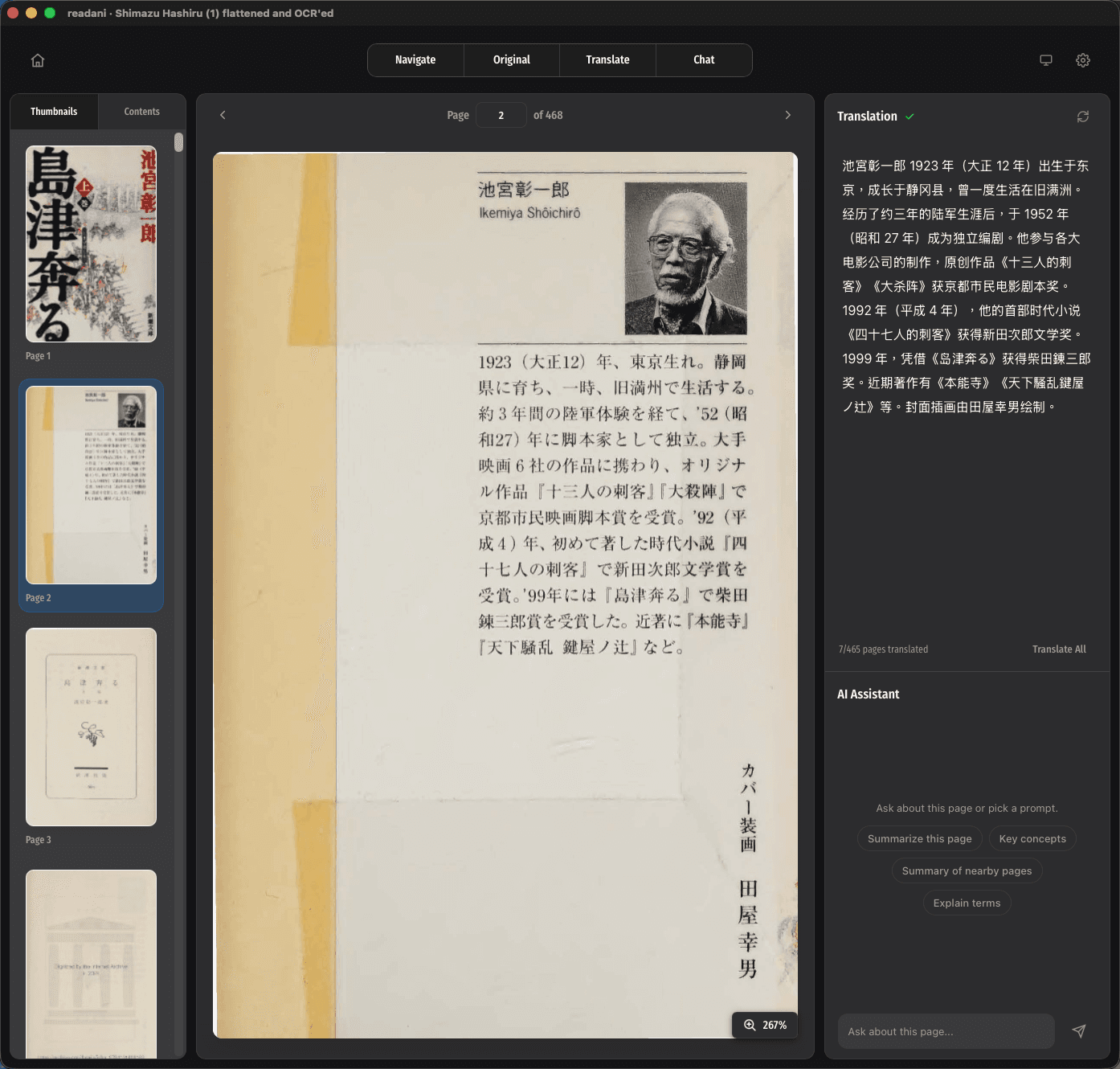
The reader keeps the document, navigation, and translation in one place. You can move through a long file without losing your place.
- Original document on the left
- Sentence-aware translation on the right
- Built for long reading sessions, not one-off snippets
Troubleshooting
What if OpenRouter does not open for me?
Use DeepSeek or an OpenAI-Compatible provider instead. readani supports all three paths, so you do not need to force one provider if it is inconvenient from your network.
Do I need to pay for a provider?
Usually yes for regular use. Some providers may offer a small trial or free test path, but readani does not promise free credits or bundled usage.
Is my API key stored in the website?
No. You paste the key into the desktop app. The landing page only explains the setup. The app stores provider settings locally on your device.
What if Load models does not work?
You can still type a model name manually. For OpenRouter, a safe first test is openrouter/free. For DeepSeek, use deepseek-chat. For OpenAI-Compatible services, Load models is usually the easiest option when it is available.